
Quiz with score: chatbot template for interactive quizzes with score
Description
Delight your audience with an interactive game-score quiz and reward winners with attractive prizes – easy to deploy with the LoyJoy Quiz with Score template.
Highlights
Highlights
- See your score
- Quiz excitement
- Elevate your chatbot game
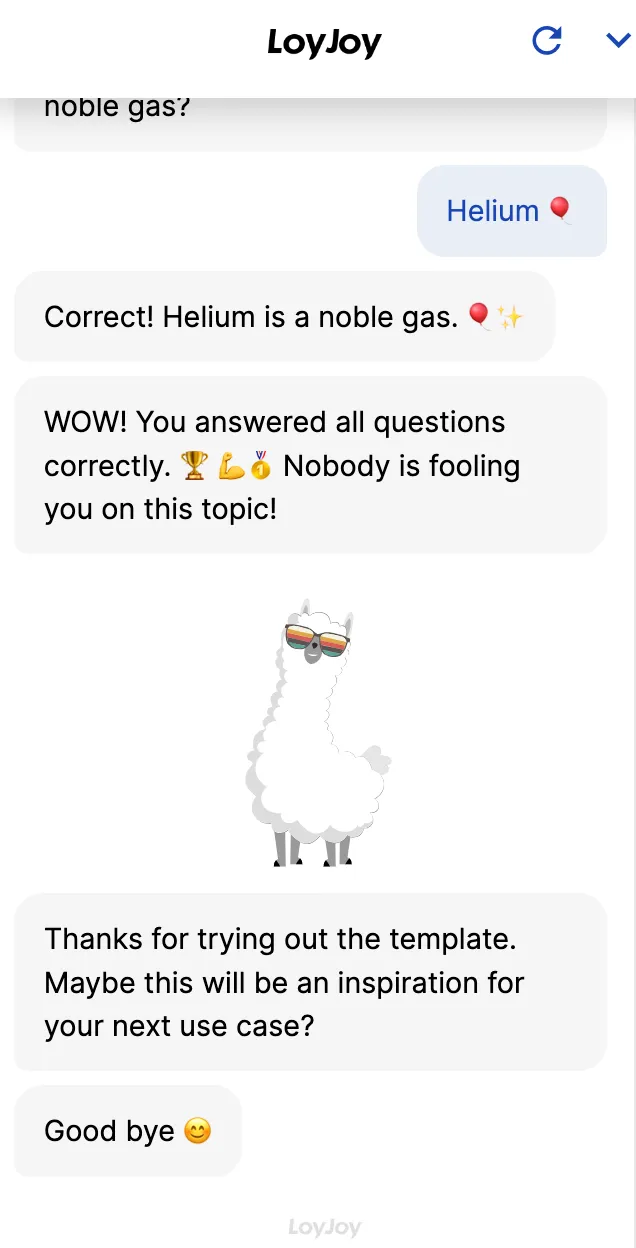
This template provides an interactive quiz with several questions that adds up points for each correct answer and shows a total score at the end, or assigns participants to a category such as a personality type or knowledge level. You can optionally couple the quiz to a raffle, so reaching a minimum score automatically unlocks entry into the draw.
Highlights
- Scoring logic and categorisation: Every answer counts, ending in a total score or an assignment to a category such as personality type or knowledge level.
- Optional raffle coupling: From a minimum score, participants are automatically entered into a draw, with no separate sign-up step.
- Leads right inside the quiz flow: Contact data and marketing opt-in are captured in the same dialogue and can be passed to your CRM or newsletter tool.
Use cases (examples)
- Product advice quiz that returns a result category instead of a score
- Brand knowledge quiz with a highscore feel
- Raffle with a quiz entry hurdle instead of a plain random draw
- Social media campaign with a shareable result
- Lead generation through playful engagement instead of a classic form
What is included in the template?
- Prepared multi-question quiz with configurable scoring logic
- Categorisation of participants by score or answer pattern
- Optional threshold logic for raffle participation
- Contact data and marketing opt-in capture built into the dialogue
- No-code editor for questions, answers and point allocation
Get started in under 5 minutes
- Install the template: Add the template to your workspace with a single click.
- Adjust questions and scoring logic: Edit questions, answer options and point allocation in the quiz module.
- Set categories or thresholds: Optionally define result categories or minimum scores for raffle entry.
- Test and publish: Run through the quiz yourself once, then embed the chat on your website.
Frequently asked questions
You decide the number of questions freely in the no-code editor. The template ships with an example structure of several questions, which you can extend or shorten.
Both are possible. You configure whether a total score is shown at the end, or whether participants are assigned to a category based on their answer pattern, for example a personality type.
You set a minimum score, from which participants are automatically entered into the draw. No separate sign-up step is needed for this.
Yes. For coupling points collection with reward redemption, our loyalty promotion template combines quiz, points and rewards in one continuous flow. Without a raffle or rewards, this quiz template works on its own as a pure engagement format.
It is captured with marketing opt-in in line with GDPR requirements in the dialogue and can be passed via integration to your CRM or newsletter tool.
You decide this in the no-code editor. A single participation per person is common, but multiple runs can be configured just as easily.